Power Pages Upgrading Bootstrap v3 to v5 the Complete Way
I have been tasked to upgrade the bootstrap version from 3 to 5 of my client’s Power Pages site. The process to do so seems to be quiet simple and has been laid out nicely by Microsoft. If you have not, below are the steps:
- Make sure your site is using Enhanced data mode. You can find about the data mode through Power Platform Admin > Manage > Select your environment > Power Pages > Select your site. If you are still on Standard, follow MS’ article to upgrade to Enhanced on https://learn.microsoft.com/en-us/power-pages/admin/migrate-enhanced-data-model.

2. Use Power Platform CLI. First, make sure you point it to your Power Pages site. Commands are as follows:
# 1. Authenticate to your portal
pac auth list
pac auth select --index [the index number of your environment]

# 2. If, you have not created any authentication connection, create it first.
# The environment ID can be obtained via Power Platform Admin
pac auth create --environment < Your environment ID >
3. Then, export the site.
# List your Power Pages sites to view its ID
pac pages list

# Export it to a local folder
pac pages download --path "C:\Projects\PowerPages" -id [Your Site ID]  --modelVersion Enhanced --overwrite
4. Next, run the bootstrap-migrate command. This command below will create a “V5” folder ie. C:\Projects\PowerPages\dev-site–dev-siteV5.
# pac pages bootstrap-migrate --path "C:\Projects\PowerPages\dev-site--dev-site"5. Once upgrade is finished, upload the V5 site back.
pac pages upload --path ""C:\Projects\PowerPages\dev-site--dev-siteV5" --modelVersion 2Now, at this point you would hope that your site is upgraded to Bootstrap 5. In my case, it has not been the case. When I visit my site > View Source, it still shows that it’s loading bootstrap v3 such as below:

I even had to redo the import/upgrade/export again and again and again, and yet it kept saying bootstrap v3 like the upgrade did not happen.
This is the final missing piece of the puzzle. In your Power Pages Management > Site Settings, make sure the following key exists:
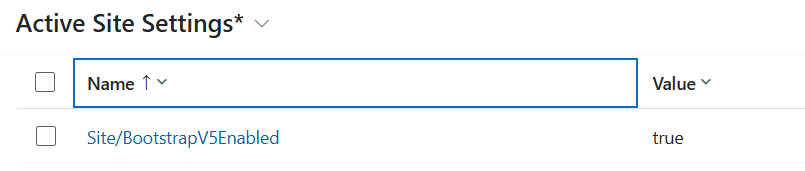
If it does not, create it manually. Once it’s set to TRUE, voila…it works!

That’s it.